.png?width=305&height=75&name=Oze%20Originate%20Logo%20(Black).png)
Part 1: Application button & Logging In
-
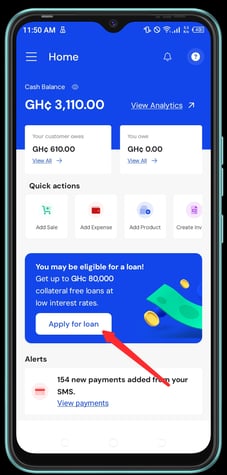
Click on the " Apply for a Loan " button on the homepage of the Oze mobile app
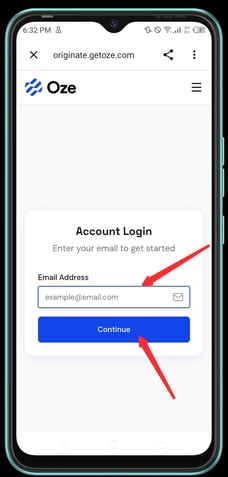
- Type your email and click on Continue
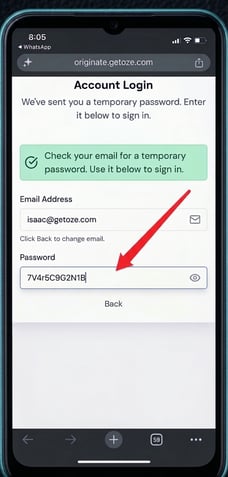
- Check your email for a temporary password
- Copy the code without the period or fullstop
- Paste the code in the password space
- Click Log into Account
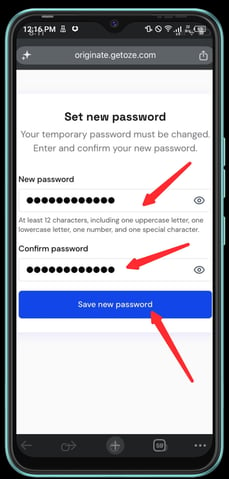
- Type in your preferred password in the first space
- Retype the same password in the second space to confirm it
- Click on Save new password
- The loans product pages opens for you to create your profile
.jpg?width=229&height=481&name=Gemini_Generated_Image_j93vmhj93vmhj93v%20(1).jpg)
Part 2: Create Your Profile
-
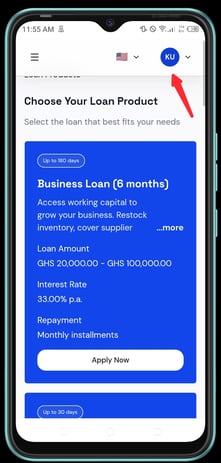
Click on the dropdown by the profile image at the top right of your screen
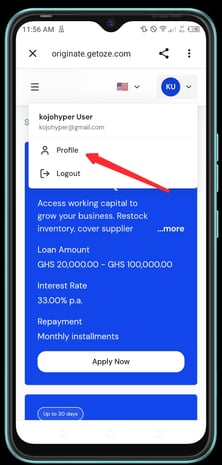
- Click on Profile
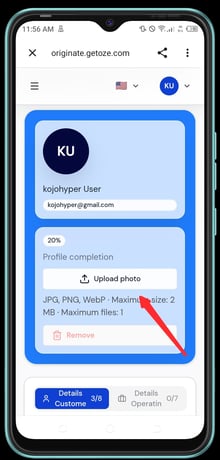
- Click on Upload Photo to attach your photo
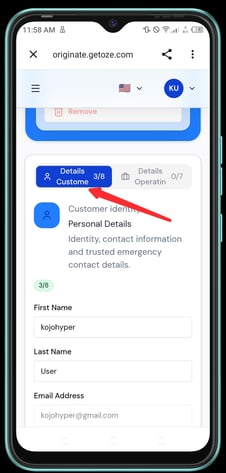
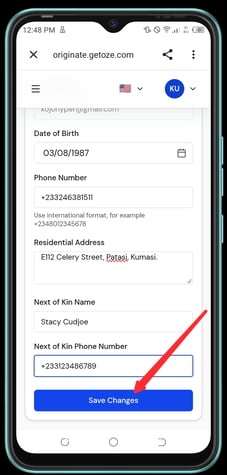
- Click on Customer Details to provide your personal details, and click Save Changes
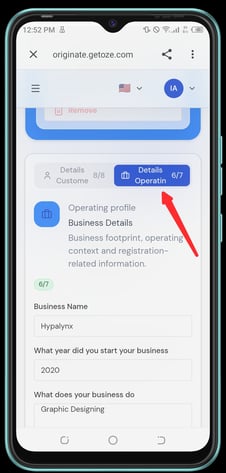
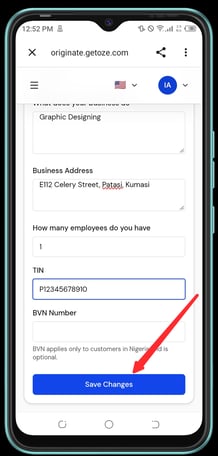
- Click on Operational Details to provide your business details, and click Save Changes
Part 3: Selecting Your Preferred Loan Product
-
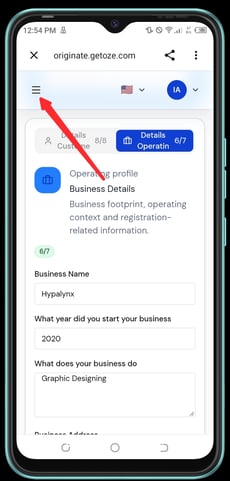
Click on the hamburger menu at the top left of your screen
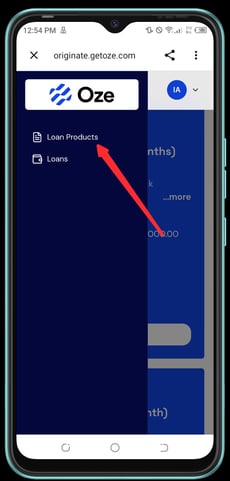
- Click on Loan Products
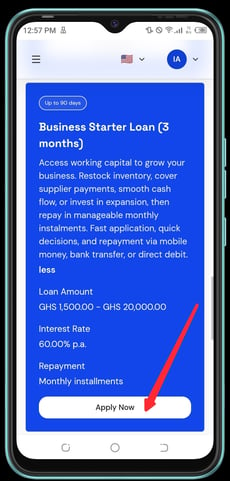
- Scroll up or down to select your preferred loan product.
- Read the loan terms
- Click on Apply Now
Part 4: Providing Your Loan Details
-
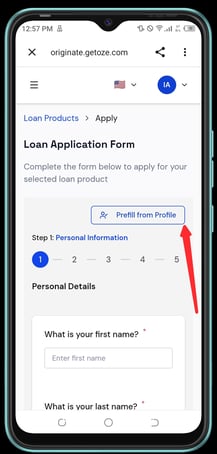
Click on the Prefill from Profile button to fill the fields with your personal info
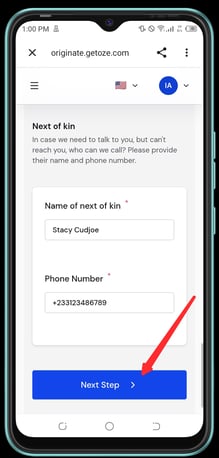
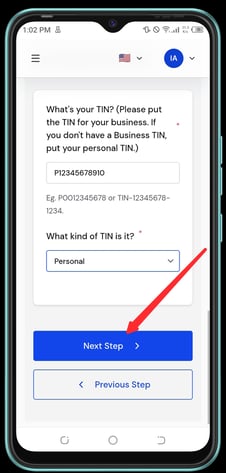
- Provide your personal details by completing the fields under Personal Information and click on Next Step.
- Next, under Business Information, provide all the required details and click on Next Step.
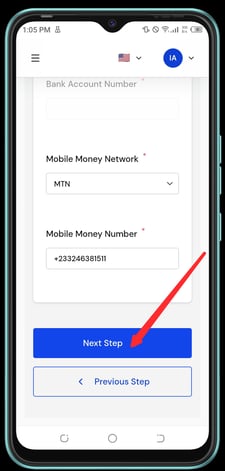
- Provide all the required information under Financial Information and click on Next Step.
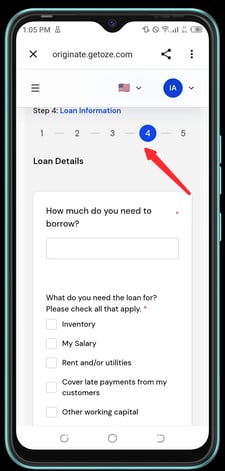
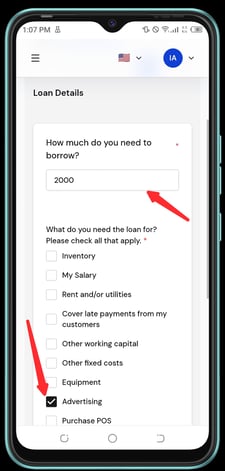
- Complete all the required fields under Loan Information and click on Next Step.
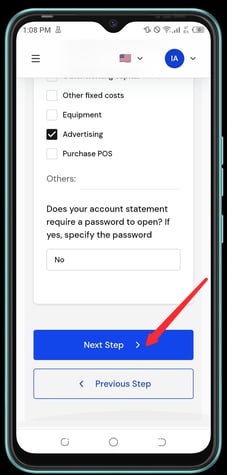
Part 5: Attach Required Documents, Review and Submit Your Loan Application
-
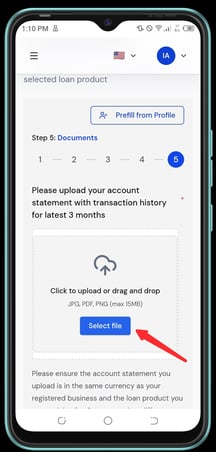
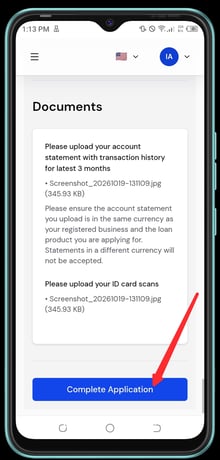
Under Documents, upload your account statement by clicking on the Select File button
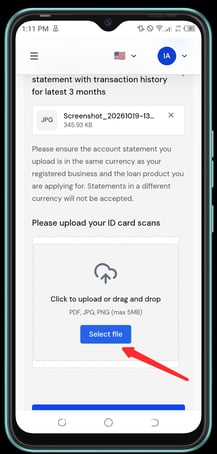
- Click the next Select File button to upload your ID card
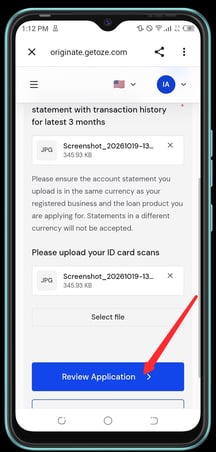
- Click the Review Application button
- After reviewing, click Complete Application to submit your loan application
- You will receive a notification to confirm the submission of your loan application
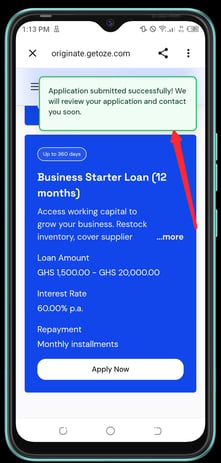
Congratulations! Your loan application has been submitted successfully.