![Logo_Primary_Horizontal (1).png]](https://help.getoze.com/hs-fs/hubfs/Logo_Primary_Horizontal%20(1).png?height=34&name=Logo_Primary_Horizontal%20(1).png)
-
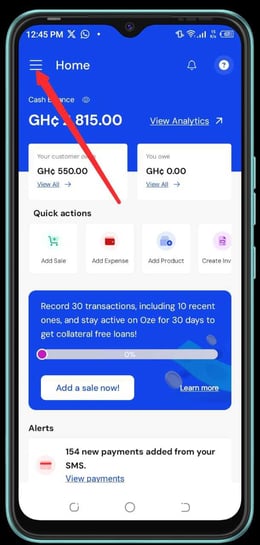
On the home page, click on the hamburger menu at the left of the screen
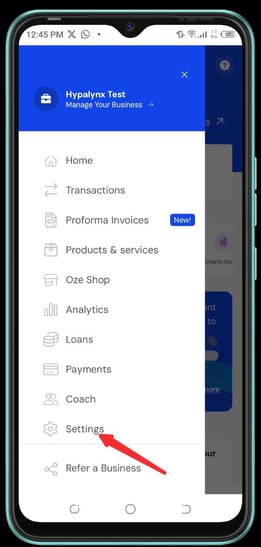
- Click on Settings
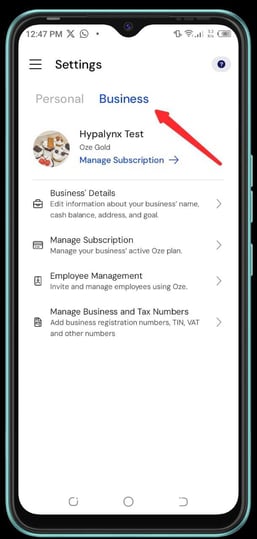
- Under settings click on Business
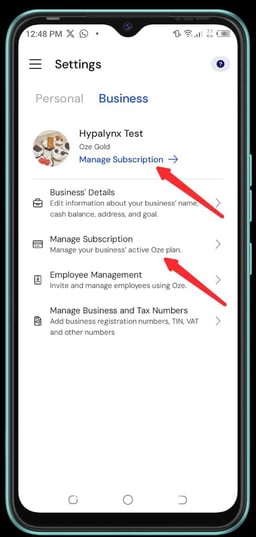
- Under Business, click on Manage Subscription
- Click on Upgrade Plan
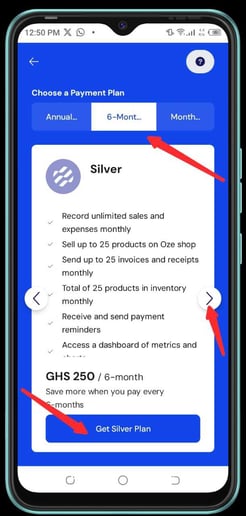
- The subscription plan portal opens, swipe to the left or right for your preferred plan
- Select Annual, 6 Months or Monthly at the top side of your screen
- Click on, "Get Silver Plan", "Get Silver Plan", "Get Gold Plan" or "Get Platinum Plan" at the bottom of the screen
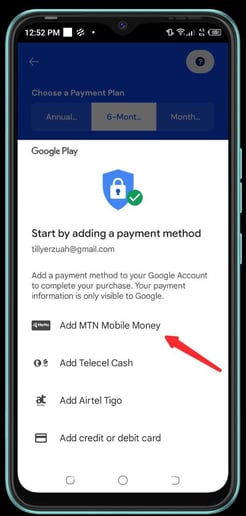
- Select your preferred payment type once the Google play payment portal opens. Example MTN Momo - Click on Add MTN Mobile Money
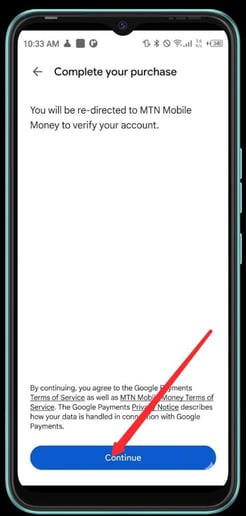
- Click on Continue
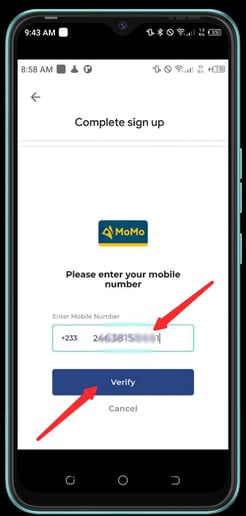
- Type your Mobile Money number and click on Verify
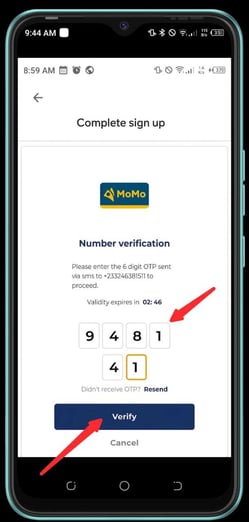
- You will receive a verification OTP via SMS, type in the 6 digit code and click on Verify
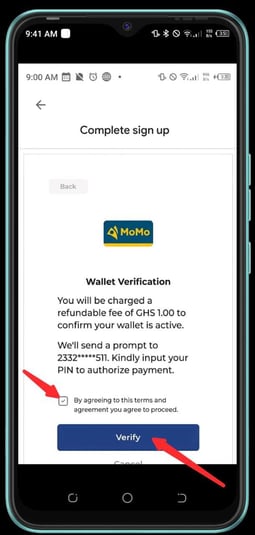
- Agree to the Terms and Conditions by checking the box and click on Verify
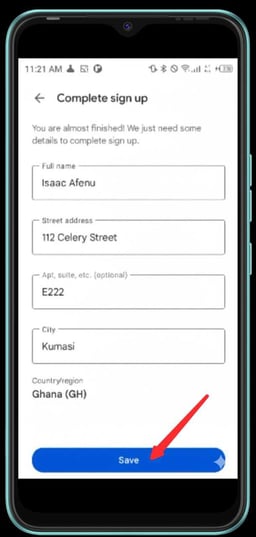
- Fill in your full name, address and city, and click on Save
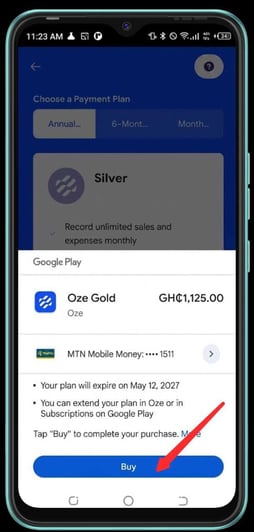
- Click on Buy and follow the payment prompt to complete the payment for your subscription
- Congrats! subscription renewed/upgraded successfully.